You're halfway through a blog post. The draft is rough, a few sentences are too long, and one paragraph reads like it was written at 2 AM (because it was). You need a grammar pass, a tone check, and maybe a version in French for your bilingual newsletter. The old workflow: copy text, open Grammarly, paste, fix, copy again, open ChatGPT, paste, ask for a rewrite, copy the result, go back to your editor. Tab after tab after tab.
That's the friction I built WindowSill to eliminate. Select text in whatever app you're already using, and the AI writing tools appear right there. No tab switching. No copy-pasting between windows. No losing your place.
This article walks through the actual workflow, step by step, for three people who write constantly: bloggers drafting posts, copywriters polishing client work, and students cleaning up essays.
How the AI writing flow works
WindowSill is a command bar that sits at the edge of your Windows desktop. It does a lot of things (clipboard history, reminders, media controls, a unit converter), but the feature that matters for this article is AI Text Suggestions.
Here's the basic loop:
- Select text in any Windows app. Word, Notion, Obsidian, Notepad, an email client, whatever.
- Open WindowSill's Analyze / Rewrite with the
Win+Ctrlkeyboard shortcut or your mouse. - Pick an action: spell check, rewrite, change tone, translate, summarize, or run a custom prompt.
- Review the result and accept it. WindowSill can paste the corrected text back into the original app, replacing what you selected.
That's it. Four steps, no context switching. The whole interaction takes a few seconds.
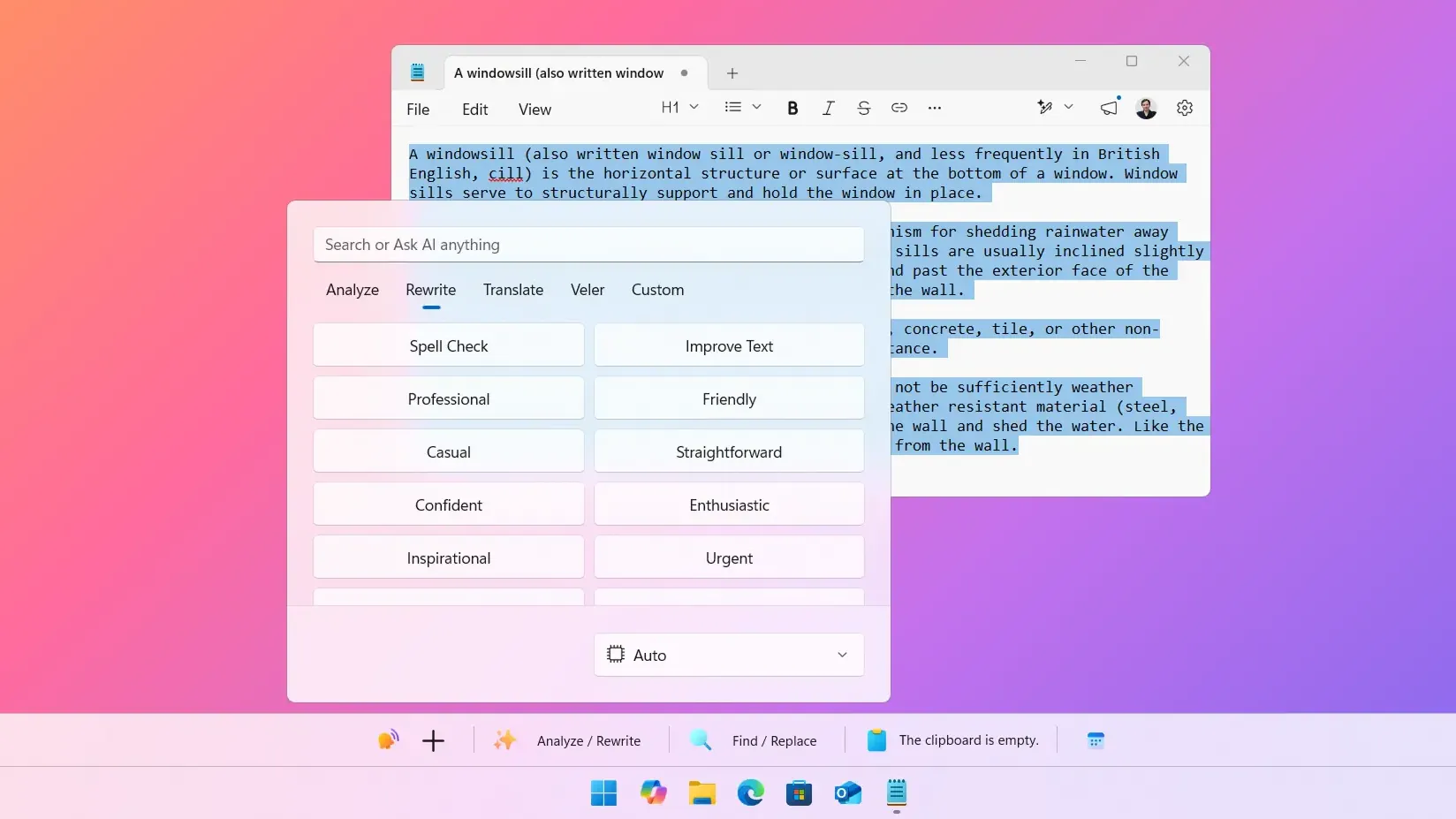
Spell check that shows you exactly what changed
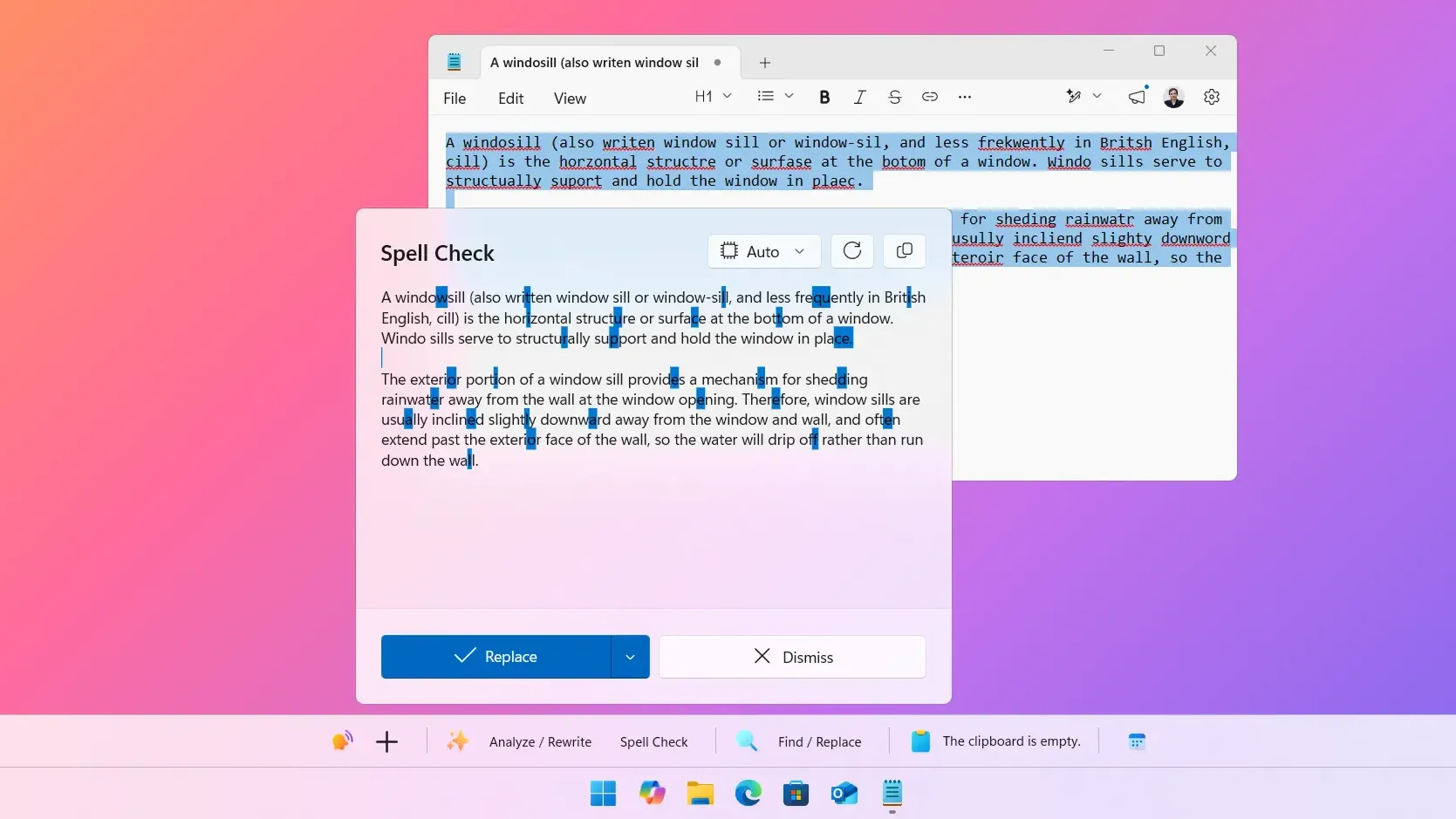
The spell check action doesn't just hand you corrected text and leave you guessing what it fixed. It shows a diff view, highlighting every change so you can see exactly what was modified before you accept it. A misplaced comma here, a misspelled word there, a subject-verb agreement fix in the third paragraph.
This matters more than it sounds. When a tool silently rewrites your text, you lose control. You don't learn from the corrections, and you can't catch cases where the AI "fixed" something that wasn't wrong. The diff view keeps you in the loop.
For bloggers running a quick cleanup pass before hitting publish, this is the feature that replaces a separate grammar tool. Select the whole post (or a section at a time), run spell check, scan the diff, accept.
Changing tone without rewriting from scratch
Say you've written a product description and it reads too stiff. Or you drafted a LinkedIn post that sounds too casual for the audience. Rewriting the whole thing from scratch is tedious, and asking a chatbot to "make this more professional" often produces something that barely resembles your original voice.
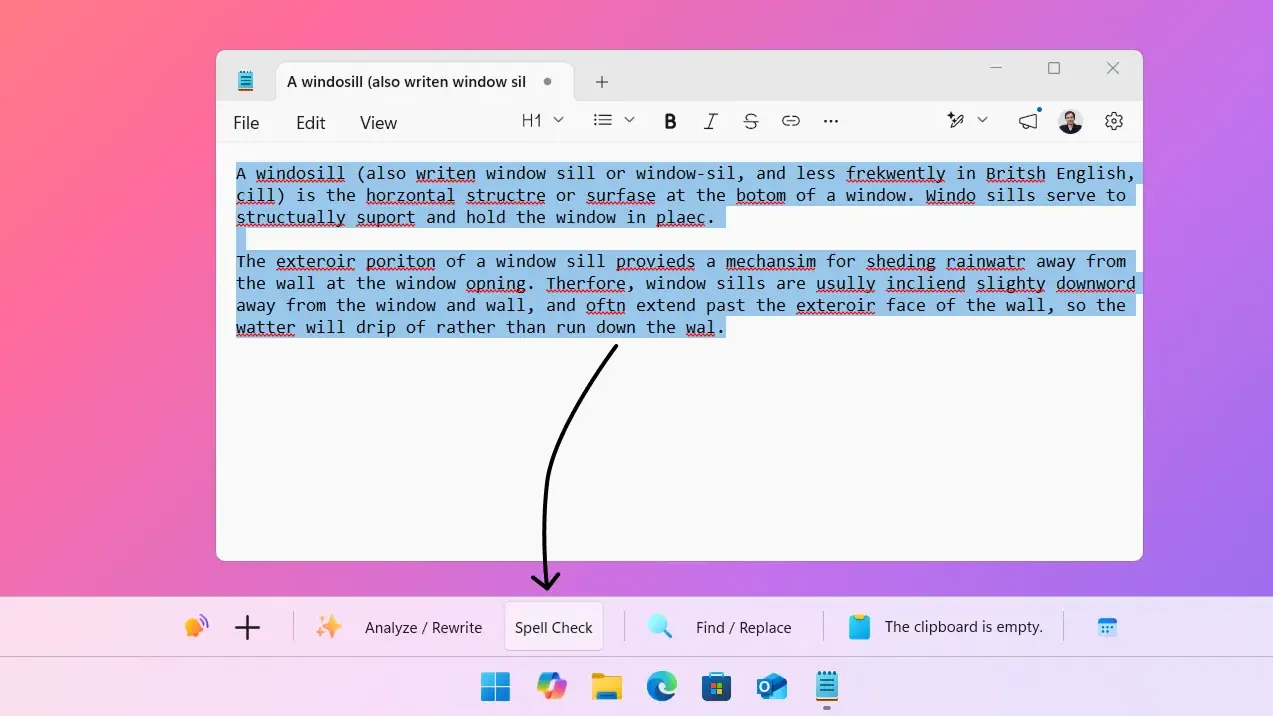
WindowSill's tone actions give you nine options:
- Professional and Straightforward for business writing
- Friendly and Casual for social media and newsletters
- Confident and Punchy for marketing copy
- Enthusiastic and Inspirational for pitches and announcements
- Urgent for time-sensitive communications
Select the text, pick a tone, and get a rewritten version that keeps your ideas but shifts the delivery. If the first result isn't right, try a different tone. The original text stays untouched until you choose to replace it.
A practical example for copywriters
Picture this: you've written landing page copy for a SaaS client. The first draft came out conversational, which felt right while writing it. But the client's brand guidelines call for a confident, authoritative voice. Instead of manually reworking every sentence, you select each section and hit "Confident." The structure stays yours. The voice shifts to match the brief.
Then the client says they also want a version for their social media manager, something lighter and more approachable. Same text, "Friendly" tone. Two versions from the same draft, produced in minutes instead of an hour.
Summarize and explain: drag in a PDF or Word doc
This one's for students and anyone who reads long documents for a living.
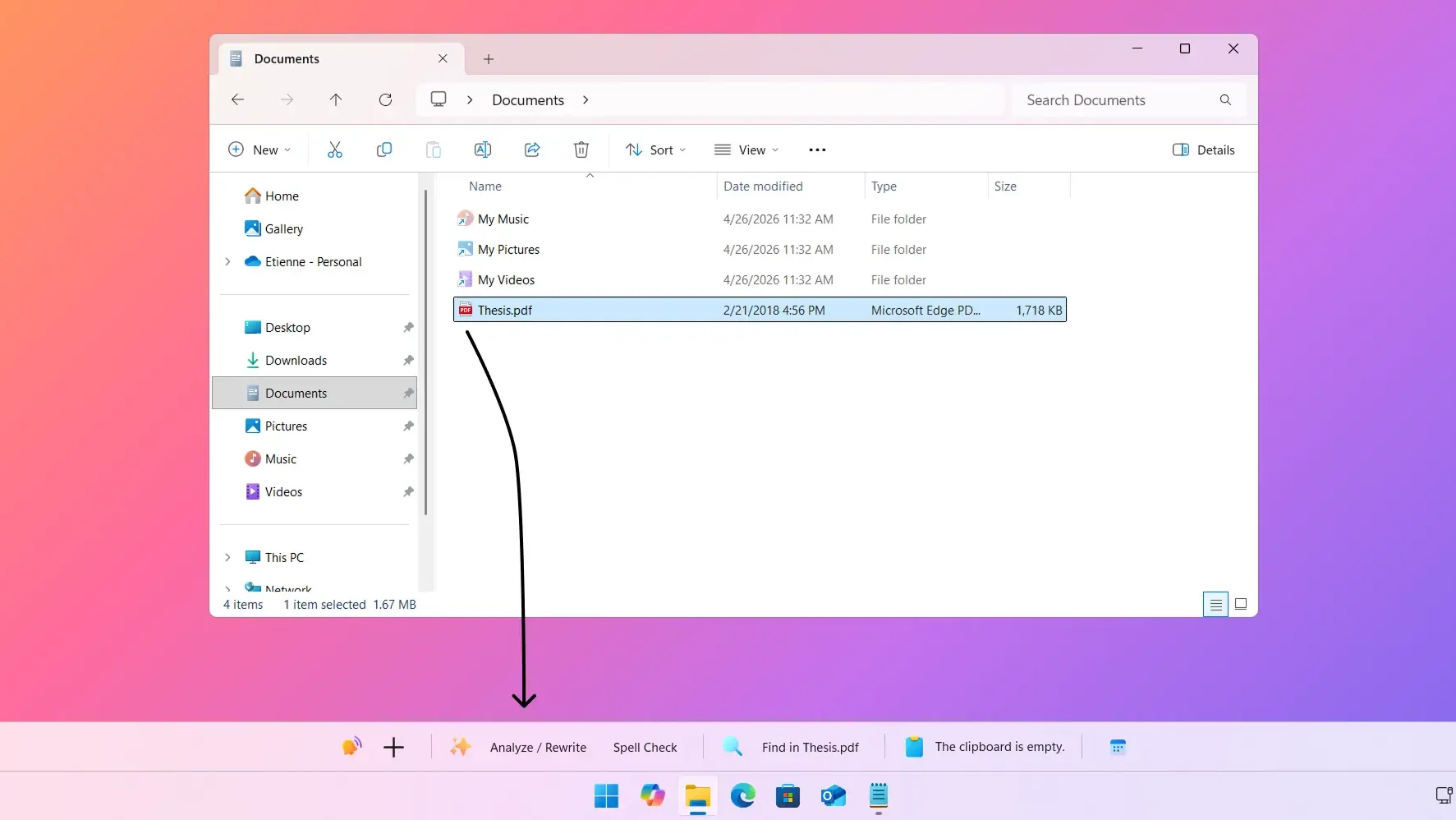
WindowSill accepts drag-and-drop for PDF and Word files. Drag a file onto the command bar, and WindowSill extracts the text content automatically. From there, you can run any AI action on it: summarize a 30-page research paper into key points, explain a dense legal document in plain language, or extract action items from meeting notes.
The Summarize action condenses long text into its core points. The Explain action rewrites complex content so it's easier to understand. Both work on selected text too, not just dragged files, so you can highlight a confusing paragraph in a textbook and ask for a plain-language breakdown.
For students working through academic papers, the workflow looks like this:
- Drag the PDF into WindowSill.
- Run Summarize to get the key arguments and findings.
- Read the original paper with that summary as a roadmap.
- When you hit a dense section, select it and run Explain.
You're not outsourcing your reading. You're giving yourself a map before hiking the trail.
Translation across 30+ languages
WindowSill includes translation actions for over 30 languages, from Arabic to Vietnamese. Select text, pick the target language, and get a translation.
This isn't a replacement for a professional translator on high-stakes content. But for everyday writing tasks, it covers a lot of ground:
- Bloggers can produce rough translations of posts for multilingual audiences, then have a native speaker review them.
- Copywriters working with international clients can quickly understand source material written in another language.
- Students studying foreign languages can check their own translations or get help parsing texts.
The translations run through the same AI models that power the other writing features, so quality depends on the model you've chosen. For common language pairs like English to Spanish or French, results are solid enough for drafts and internal communication.
More tools writers will use daily
Beyond the headline features, a few other built-in actions are worth knowing:
Shorten and Lengthen do exactly what they sound like. Select a paragraph that's running long and hit Shorten. Have a bullet point that needs more substance? Lengthen. These are small actions that save real time during editing.
Humanize is designed for one specific problem: making AI-generated text sound more natural. If you've used ChatGPT or Claude to draft something and it reads too polished, too "AI," this action roughens the edges. Useful for students who use AI as a starting point and want to make the output their own.
Simplify Language takes complex writing and makes it more accessible. Good for technical writers adapting content for a general audience, or for anyone who tends to overcomplicate their sentences.
Bottom Line Up Front (BLUF) restructures text to lead with the main point. If you've buried your conclusion three paragraphs deep (we've all done it), this action pulls it to the top.
Email reformats text into a proper email structure. Start with rough notes about what you want to say, run the Email action, and get a clean draft ready to send.
Custom prompts for your specific workflow
The predefined actions cover common tasks, but every writer has particular needs. WindowSill lets you create custom prompts that show up alongside the built-in ones.
A few ideas:
- A prompt that rewrites text to match your brand's specific style guide
- A prompt that converts blog posts into Twitter threads
- A prompt that generates meta descriptions from article text
- A prompt that identifies passive voice and suggests active alternatives
Custom prompts are saved locally and appear in your action list every time you select text. If you find yourself repeatedly pasting the same instruction into ChatGPT, that instruction should probably be a custom prompt in WindowSill instead.
It works where you already write
The key difference between WindowSill and a standalone writing tool is that WindowSill works inside your existing workflow. You don't move your text to a different app. The AI comes to your text.
This means it works in:
- Word, or Notion for long-form writing
- WordPress or Ghost for blog editing
- Gmail or Outlook for email
- Slack or Teams for quick messages
- Any text field in any Windows app
You're not learning a new editor. You're adding AI capabilities to the one you already know.
Getting started
- Download WindowSill from the Microsoft Store. The app is free to install.
- Set up your AI provider. Through a WindowSill+ lifetime license, WindowSill supports your own API keys from OpenAI, Anthropic, Azure OpenAI, Google, Mistral, xAI, and OpenRouter. You can also run local models through Ollama, LM Studio, or Microsoft AI Foundry Local.
- Select text in any app and open WindowSill with your keyboard shortcut.
- Try spell check first. It's the fastest way to see the workflow in action and get comfortable with the diff view.
- Explore tones and custom prompts as you get familiar with the tool.
The learning curve is about five minutes. The time savings compound every day.
Frequently Asked Questions
Does WindowSill work with Gmail and web-based editors?
Yes. WindowSill works with any app where you can select text, including browser-based editors like Gmail, Word, Notion, WordPress, and Ghost. It operates at the system level, not inside a specific application.
Do I need a subscription for the AI writing features?
Not necessarily. The AI features require either a WindowSill+ subscription (which includes built-in, unlimited AI access) or a WindowSill+ lifetime license and your own API key from a supported provider. The base app with clipboard history, reminders, and other non-AI tools is free.
Can I use WindowSill for AI writing without sending my text to the cloud?
Yes. WindowSill supports local AI models through Ollama, LM Studio, and Microsoft AI Foundry Local. Your text never leaves your computer. See the Ollama setup guide for details.
How accurate is the spell check compared to Grammarly?
WindowSill uses general-purpose AI models rather than a grammar-specific engine. For most writing tasks, the results are solid and the diff view gives you full control to accept or reject changes. For a detailed comparison, see WindowSill vs. Grammarly.
Can I use WindowSill for languages other than English?
Yes. Spell check, rewriting, and tone adjustments work in any language the AI model supports. On top of that, there are dedicated translation actions for 30+ languages. Results are strongest in widely spoken languages like Spanish, French, German, Chinese, and Japanese.
Download WindowSill from the Microsoft Store and see how much smoother your writing workflow gets when the tools live where you work.