I've installed more clipboard managers than I'd like to admit. Ditto, CopyQ, ClipClip, 1Clipboard. Every time, the same pattern: I'd set it up, use it for a week or two, then completely forget it existed. The app was running in my system tray, quietly doing its job, and I never looked at it. I'd go right back to copying something, losing it, and cursing under my breath.
The problem wasn't the apps. They all worked fine. The problem was that I had to remember to use them. And I never did.
That experience is what led me to build clipboard history directly into WindowSill, a free command bar for Windows. Instead of hiding in a tray icon, your clipboard history sits right in the bar on your desktop, always visible. No extra window to open, no shortcut to remember, no app to forget about.
What most clipboard managers get wrong
A clipboard manager for Windows is any tool that stores what you copy so you can access it later. The concept is solid. You copy a URL, then copy some text, and now you want the URL back. Without a clipboard manager, it's gone.
Standalone clipboard managers like Ditto and CopyQ solve this well on a technical level. They run in the background, store your history, and give you a search interface when you need something.
But here's what I kept running into: they require you to change your workflow. You have to remember a hotkey (usually Ctrl+Shift+V or something custom), open a separate window, find your item, and paste it. That's fine when you're actively thinking about clipboard management. Most of the time, you're not. You're just working.
Windows itself added clipboard history with Win+V back in the October 2018 Update. I have a personal connection to this one. During a 2017 internship at Microsoft, I was building a clipboard manager as a side project, called ClipboardZanager. It had the same hidden-window problem I just described. The team working on what would become Win+V found my project that I advertised online and reached out, and I got to demo my project and brainstorm with them. So I've been thinking about this problem for a long time.
The Windows built-in clipboard manager is a step up from nothing, but it has the same core issue. You have to press Win+V, wait for the panel to pop up, scan through a list, and click. It's also limited to 25 items with no persistence after a restart, no password detection, and no way to paste into File Explorer.
The pattern is always the same: a hidden tool you have to go find.
The case for a visible clipboard
I built WindowSill and its Clipboard History around one idea: if you can see it, you'll use it.
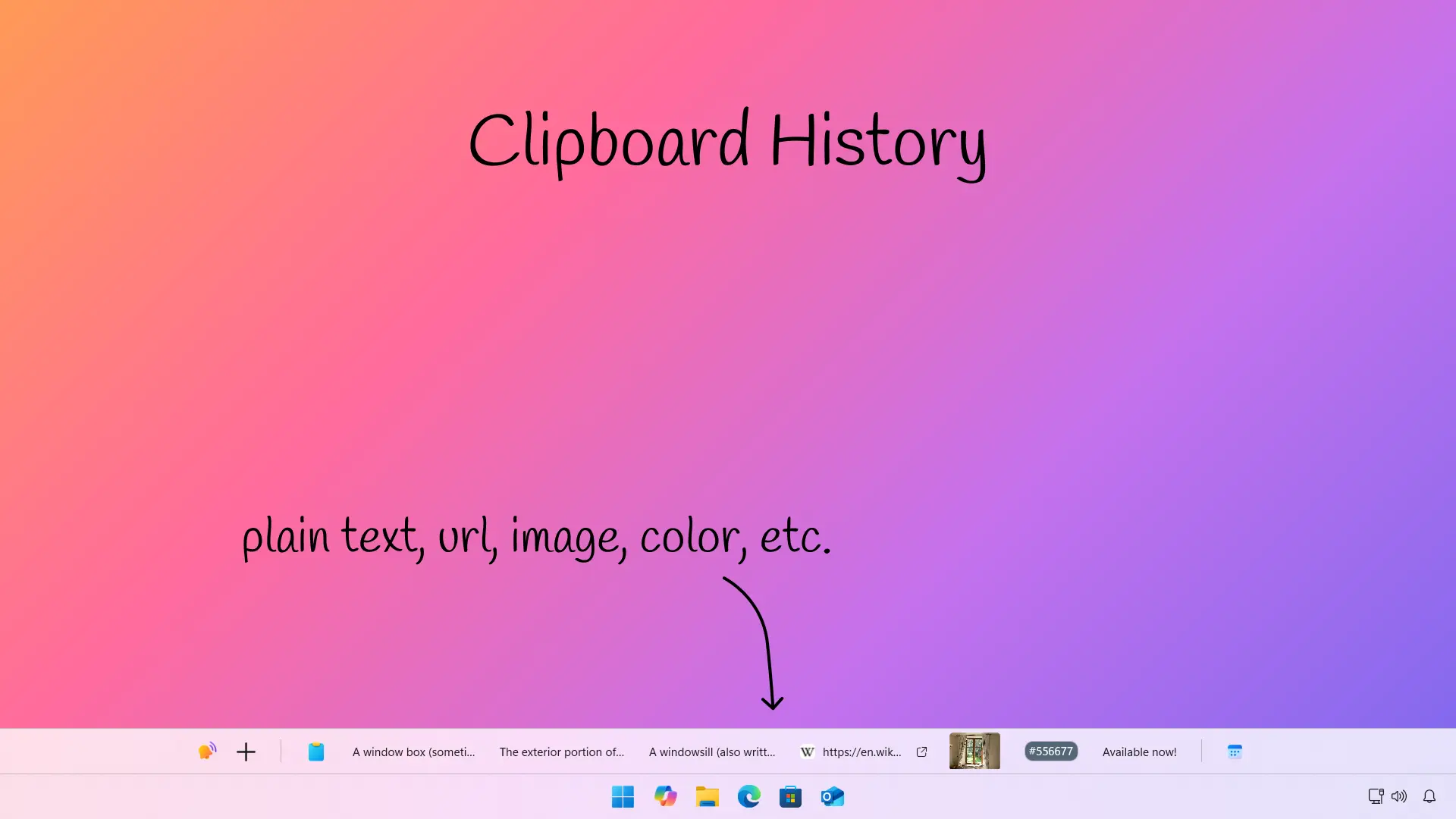
WindowSill is a command bar that sits along the edge of your screen (top, bottom, left, or right). Extensions add functionality to this bar. The Clipboard History extension places your recent clipboard items right there, as part of your desktop. Every time you copy something, it appears. No hotkey, no window, no mental overhead.
This isn't a subtle difference. It changes how often you actually go back to previous clipboard items. When the last five things you copied are sitting in plain view while you work, grabbing the second-to-last URL you copied becomes as natural as glancing at your taskbar clock.
Two display modes
The extension supports two ways of showing clipboard items:
- Expanded mode shows each clipboard item as its own entry in the bar. You see previews of text, images, colors, and links directly. Click any item to paste it into your active window.
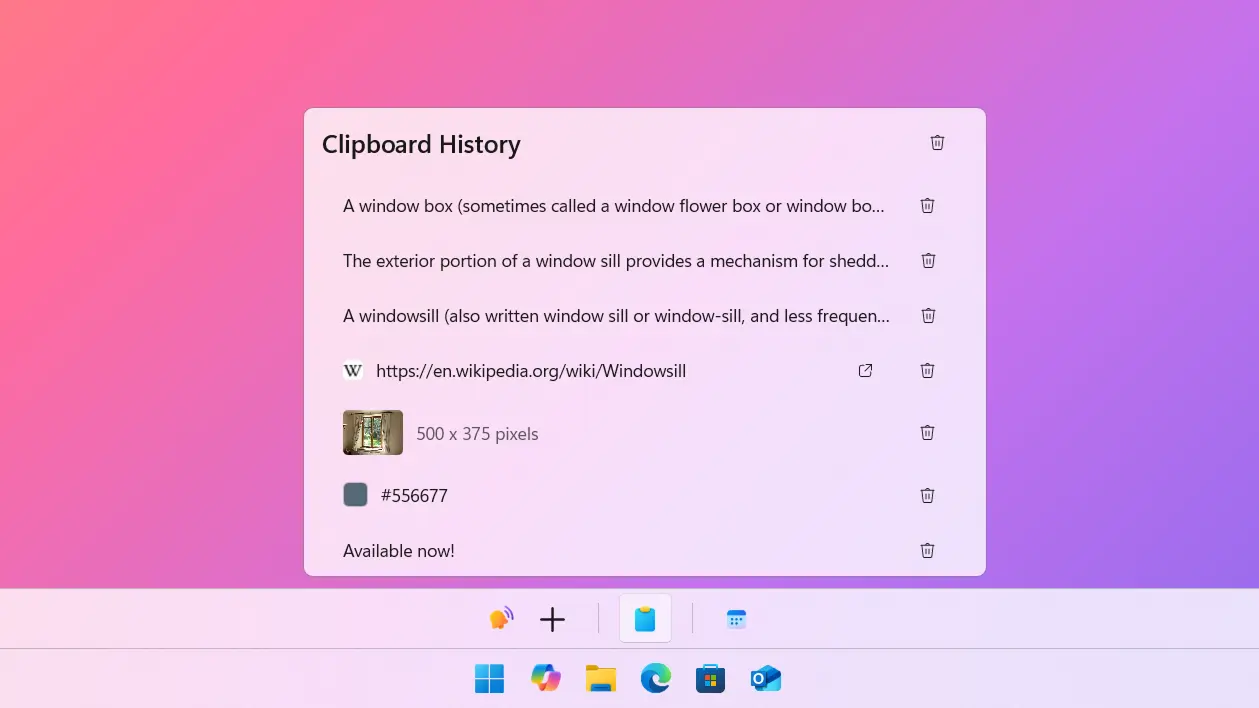
- Compact mode groups everything into a single popup. Click the clipboard icon, and a panel opens with your full history. This works well if you want a cleaner bar and don't mind one extra click.
You can switch between the two in the extension's settings.
What Clipboard History actually tracks
Most clipboard managers handle plain text. Some handle images. WindowSill's Clipboard History extension tracks a wider range of content types:
| Content Type | What It Looks Like in the Bar |
|---|---|
| Plain text | Text preview with truncation |
| HTML | Rendered preview of the formatted content |
| Rich text (RTF) | Formatted text preview |
| Images | Thumbnail preview |
| URLs | Clickable link preview |
| Application links | App-specific link display |
| Colors | Color swatch preview |
On top of that, the extension detects when you've copied something that looks like a password and hides it automatically. This is on by default. No setup, no configuration. If you copy a strong password from your password manager, it won't be sitting in plain text on your screen. Finally, by default, WindowSill hides itself when a screenshot is captured or when a software record a video of your screen, which ensure your clipboard won't leak.
Paste directly into File Explorer
This is a feature I haven't seen in most standalone clipboard managers. When you click a clipboard item in WindowSill and your last active window was File Explorer, the extension writes the content as a file in the current folder instead of pasting via Ctrl+V.
Copy some text, click it in the bar while Explorer is focused, and you get a Clipboard.txt file. Copy an image, same action, and you get a Clipboard.png. The extension handles duplicate naming too (Clipboard (1).txt, and so on).
It's a small thing, but it saves a surprising number of steps when you're organizing content or saving snippets from the web.
How it compares to popular clipboard managers
Here's an honest look at how WindowSill's Clipboard History stacks up against the most common options:
| Feature | WindowSill Clipboard History | Ditto | CopyQ | Windows Win+V |
|---|---|---|---|---|
| Price | Free | Free | Free | Built-in |
| Always visible | Yes (in bar) | No (tray icon) | No (tray icon) | No (popup) |
| Activation | Automatic | Hotkey | Hotkey | Hotkey |
| Text support | Yes | Yes | Yes | Yes |
| Image support | Yes | Yes | Yes | Yes |
| HTML/RTF support | Yes | Yes | Yes | Limited |
| Color detection | Yes | No | No | No |
| Password hiding | Yes (automatic) | No | No | No |
| Paste to File Explorer | Yes | No | No | No |
| Search | No | Yes | Yes | No |
| History persistence | Session-based | Persistent | Persistent | Session-based |
| Scripting/macros | No | No | Yes | No |
I'll be straightforward about the trade-offs. Ditto and CopyQ both offer persistent history across reboots and search functionality, which Clipboard History doesn't. If you copy hundreds of items a day and need to search through them a week later, those tools do that better.
But if your actual usage looks more like "I need the thing I copied 3 minutes ago," visibility beats searchability. Most people don't need a clipboard database. They need to see their last few copies without thinking about it.
Getting started
Setting up Clipboard History takes about 30 seconds:
- Install WindowSill from the Microsoft Store or the website. It's free.
- Enable Clipboard History in Windows. Go to Settings → System → Clipboard and turn on "Clipboard history." The extension will walk you through this on first launch if it's not already enabled.
- That's it. Clipboard History is activated by default. Start copying things, and they'll appear in the bar.
If you want to tweak the behavior, open WindowSill's settings and look for the Clipboard History section. You can adjust the maximum number of items, toggle password hiding, and switch between expanded and compact mode.
Frequently Asked Questions
Is WindowSill's clipboard manager really free?
Yes. WindowSill is free to download and use. The Clipboard History extension comes pre-installed and activated. There's no paywall, trial period, or feature gating.
Does it work with multiple monitors?
Yes. The extension supports multi-monitor setups and can show clipboard history on every monitor's WindowSill bar by default.
Can I clear or delete individual clipboard items?
Yes. Right-click any clipboard item in the bar to delete it or clear the entire history. In compact mode, there's a clear button in the popup header.
Does it replace Windows Win+V?
It doesn't disable Win+V. Both can run side by side. But once your clipboard history is visible in the bar, most people stop pressing Win+V because there's no need.
What about clipboard history after a restart?
Clipboard History uses the Windows clipboard API, so history is session-based. Items are lost on restart unless you've pinned them through Windows' own Win+V panel. For persistent cross-session history, tools like Ditto are a better fit.
The best clipboard manager isn't the one with the most features. It's the one you actually use. And you're far more likely to use something you can see. Download WindowSill for free and see how it changes the way you work with your clipboard.