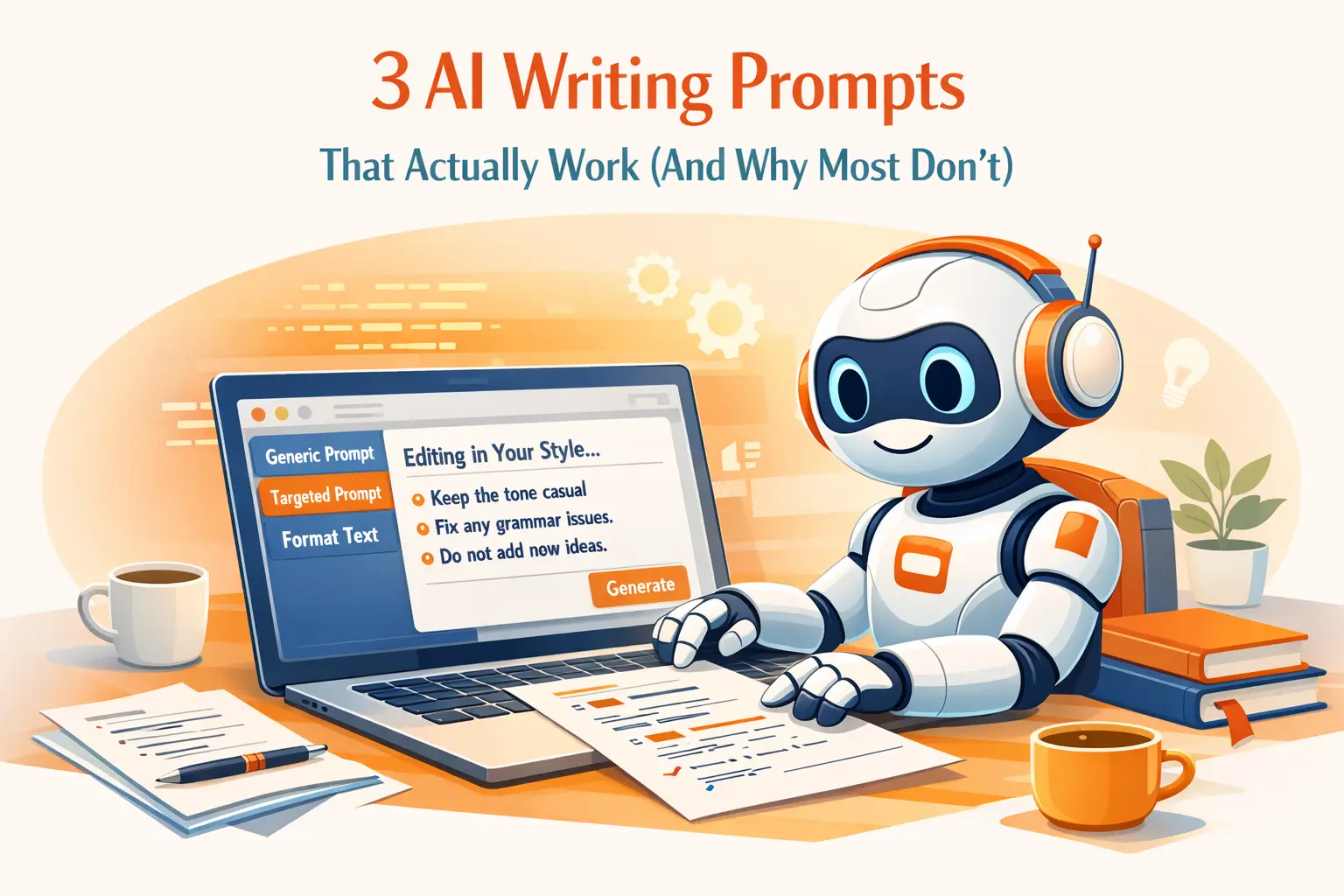
Picture this: you're about to send an email to a client, so you select your draft, hit "Improve text" in your AI tool, and get back something that sounds like a corporate press release. You try again with "make it more casual." Now it sounds like a text message to a friend. You spend five minutes going back and forth, and the original draft was probably fine.
The problem isn't AI. The problem is the prompt. Most AI writing prompts are too vague to give you anything useful, and too generic to give you anything consistent. Here are three prompts that fix that, plus a look at why the "fix my grammar" approach keeps falling short.
Why Most AI Writing Prompts Fail
A prompt like "improve this text" gives the AI almost nothing to work with. Improve how? For what audience? In what tone? The model fills in those blanks with its own defaults, which is why the output never sounds like you.
Three things make a prompt fail:
- No role definition. Telling AI to "fix this" is like handing a document to a stranger on the street. You haven't told it who to be. A copywriter rewrites differently than a technical editor.
- No constraints. Without boundaries, models tend to over-correct. They'll restructure your paragraphs, swap out your vocabulary, and add filler phrases you'd never write.
- No context. A good prompt knows where the text will be used. An email to your team needs a different treatment than a LinkedIn post or a commit message.
This is why one-click "fix grammar" buttons feel like a coin flip. They work sometimes, but they can't adapt to your specific situation.
Prompt #1: The Tone-Locked Editor
This prompt is for when you want AI to clean up your writing without changing your voice.
You are a copy editor who preserves the author's voice. Edit the
following text for clarity, grammar, and conciseness.

Rules:
- DO NOT change the tone or level of formality.
- DO NOT add new sentences or ideas.
- DO NOT remove line breaks or change formatting.
- Keep it in the original language: {{language}}
- If a sentence is already clear, leave it alone.
The magic is in the constraints. Instead of "improve this," you're giving the model a specific job with clear boundaries. The {{language}} variable is a dynamic field in WindowSill that automatically inserts whatever language your system is set to, so this prompt works whether you're writing in English, French, or Japanese.
When to use it: Emails, Slack messages, documents where you want polish without personality transplants.
Why it works: Most "improve text" prompts fail because they give the AI permission to rewrite everything. This one explicitly tells it to stop touching things that are already fine.
Prompt #2: The Context-Aware Summarizer
Summarization prompts usually produce bullet points that miss the point. This one adapts based on what app you're working in.
You are a professional summarizer. Create a concise summary of
the following text.

Context: the user is working in {{app_name}}.

Format rules:
- If the text is an email or message thread, lead with the
  key decision or action item, then provide supporting context.
- If the text is a document or article, provide a 2-3 sentence
  summary followed by up to 5 key takeaways.
- If the text is code or technical content, explain what it does
  in plain language.
- Keep the summary under 30% of the original length.
- Write in {{language}}.
The {{app_name}} field automatically detects the application you're working in. If you're in Outlook, the prompt knows to look for action items. If you're in a browser reading an article, it shifts to a takeaway-focused summary.
When to use it: Meeting notes, long email threads, research you need to share with your team.
Why it works: Generic summarizers treat every input the same way. This prompt gives different instructions for different content types, which is the kind of thing you'd do instinctively if you were summarizing by hand.
Prompt #3: The Format Converter
This one turns rough notes into structured output. Think of it as a template engine powered by AI.
You are a formatting expert. Transform the following raw text
into a well-structured format.

Rules:
- Identify the intent behind the text (meeting notes, to-do list,
  bug report, project update, etc.) and format accordingly.
- Use markdown formatting: headers, bullet points, numbered lists
  where appropriate.
- Preserve all information from the original. Do not add content
  the author didn't include.
- Current date: {{date}}
- Current time: {{time}}
- Add timestamps where relevant (meeting notes, action items).
- Write in {{language}}.
The {{date}} and {{time}} fields inject the current date and time automatically. So when you run this prompt on a quick brain dump after a meeting, the output includes proper timestamps without you having to type them.
When to use it: Turning voice-to-text transcripts into clean notes. Converting a stream-of-consciousness draft into a structured document. Formatting a list of ideas into an organized project brief.
Why it works: Most people don't need AI to write for them. They need AI to organize what they've already written. This prompt stays out of the content and focuses on structure.
What Makes These Prompts Different
All three prompts share a pattern:
| Element | What it does |
|---|---|
| Role definition | Tells the AI who to be (editor, summarizer, formatter) |
| Explicit constraints | Lists what the AI must not do |
| Dynamic context | Uses template variables like {{language}}, {{app_name}}, {{date}} to adapt automatically |
| Output format | Specifies the structure of the response |
This is the difference between a prompt that works once and a prompt that works every time. The dynamic fields mean you don't have to edit the prompt before each use. It adapts to the situation on its own.
Building Your Own Reusable Prompts
WindowSill's custom prompt system lets you save prompts like these and run them on any selected text, in any app on Windows. You write the prompt once, add the template variables you need, and it becomes a one-click action.
The available template fields include:
{{language}}– your system language{{clipboard}}– current clipboard content{{app_name}}– the app you're working in{{file_name}}– the file you have selected in File Explorer{{file_extension}}– the file type{{date}},{{time}},{{date_time}}– current date and time{{model_name}}– the AI model being used
If you don't want to write prompts from scratch, WindowSill also includes a prompt generator. Describe what you want the prompt to do (for example, "a prompt that rewrites text for a non-technical audience"), pick your preferred AI model, and it generates a full, structured prompt you can save and customize.
You can also assign a specific AI model to each prompt. A fast, cheap model for grammar checks. A more capable model for summarization. Each prompt runs with the model that fits the task.
Frequently Asked Questions
What is a custom AI writing prompt?
A custom AI writing prompt is a reusable set of instructions you give to an AI model to transform text in a specific way. Unlike generic "improve" buttons, custom prompts define the AI's role, constraints, and output format, so you get consistent results every time.
Can I use these prompts outside of WindowSill?
The prompt text itself works in any AI tool that accepts system prompts. The template variables like {{language}} and {{app_name}} are specific to WindowSill and won't work in a plain ChatGPT conversation. Those variables are what make the prompts reusable without manual editing.
How many custom prompts can I create in WindowSill?
There's no limit. You can create as many custom prompts as you need, organize them with favorites, and hide built-in prompts you don't use.
Do I need to know prompt engineering to use this?
No. WindowSill ships with over 20 built-in prompts (spell check, tone adjustment, summarize, translate to 30+ languages, and more). For custom prompts, the built-in prompt generator can create one for you from a plain-English description of what you want.
What AI models work with custom prompts?
WindowSill supports OpenAI, Anthropic, LM Studio (local models), and other providers. You can assign a preferred model per prompt, or use your default.
The best AI writing prompt isn't the cleverest one. It's the one you'll actually use again tomorrow. Save it, give it template variables so it adapts, and stop rewriting the same instructions every time you need help with text. Download WindowSill and try the prompt generator to build your first custom prompt in under a minute.