
The AI features in WindowSill have grown fast over the past few releases. New providers, new prompts, new ways to trigger them. But the settings to manage all of it? They were scattered across multiple pages. That friction added up.
0.9.23 fixes that. Prompts live in one place now, AI Activity results clean themselves up automatically, and you can run multiple configurations of the same provider side by side. Here's the full breakdown.
One settings page for all your prompts
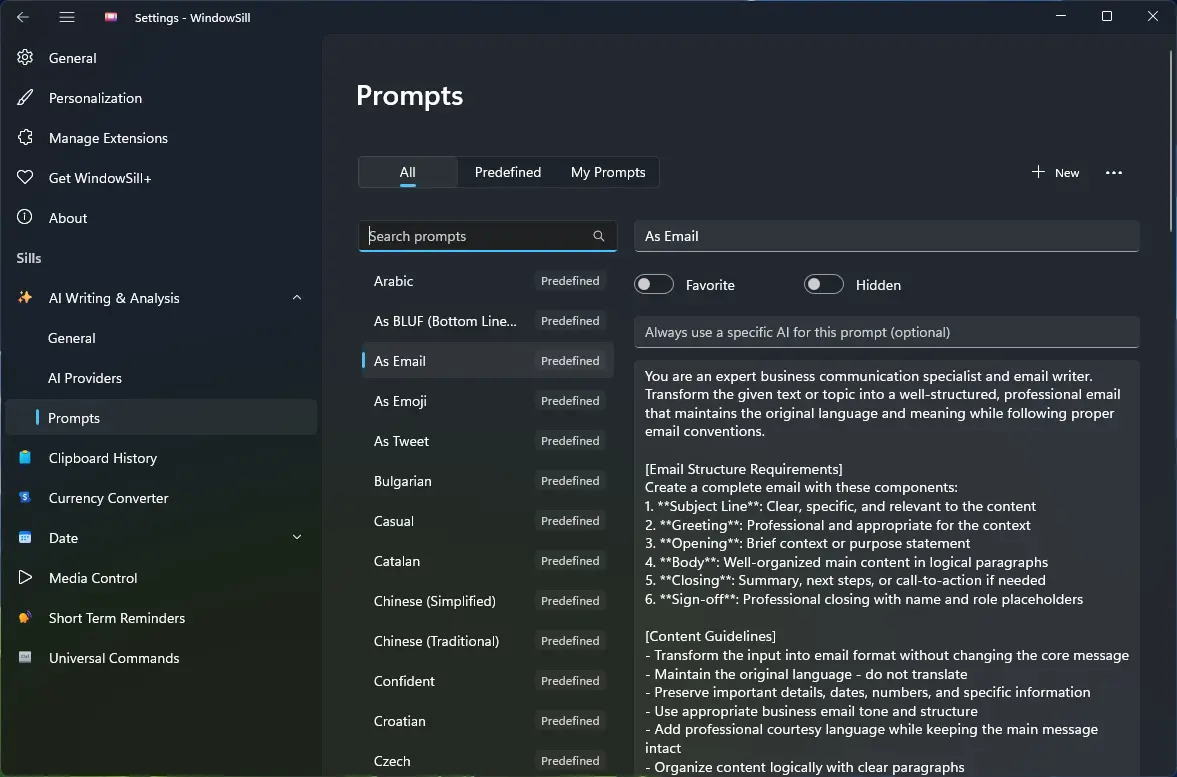
Predefined prompts, custom prompts, and organization prompts used to live on separate pages. You'd jump between tabs trying to find or configure the one you wanted. Not great when you have dozens of them.
They're now merged into a single unified settings page. Every prompt you have access to, regardless of source, shows up in one list. A new search bar and source filter sit at the top, so you can type a few characters or filter by "Custom" or "Organization" to find what you need instantly.
If you've been building a library of custom prompts (or your organization has pushed a bunch through WindowSill Pro), this is a big quality-of-life improvement.
Multiple instances of the same AI provider
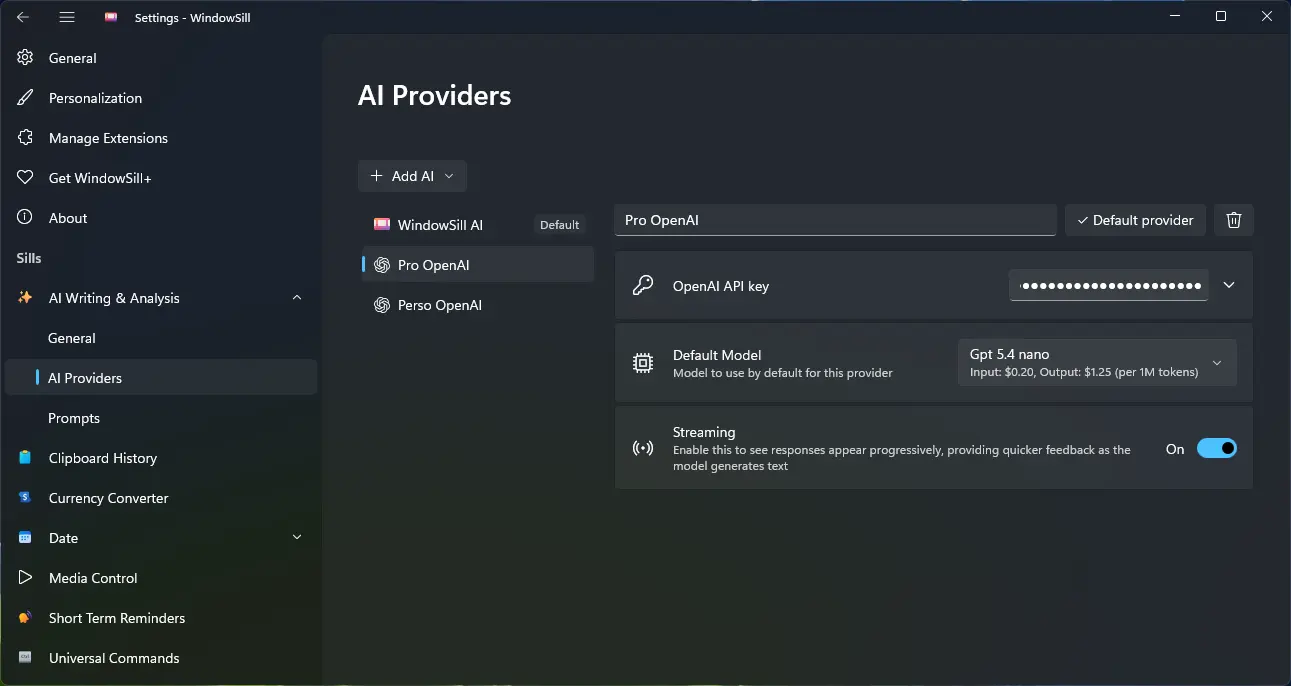
Until now, each AI provider could only be configured once. If you wanted to use OpenAI with two different API keys, or set up separate Ollama instances pointing at different local models, you were stuck.
You can now add multiple instances of any AI provider. Each instance gets its own custom name and independent configuration. A few examples of what this unlocks:
- Two OpenAI accounts: one personal, one through your company, each with its own key and model selection.
- Multiple Ollama instances: point one at a fast model for quick rewrites and another at a larger model for deep analysis.
- Staging vs. production: test a new provider setup without disrupting your working configuration.
Name them whatever makes sense to you. "Work GPT," "Home Claude," "Local Llama 3" - the label is yours.
AI Activity: auto-dismiss and pinning
AI Activity already tracked your running prompts. The problem was what happened after they finished: completed results would pile up and sit there until you open them. Opening them would result in losing them after seeing the result.
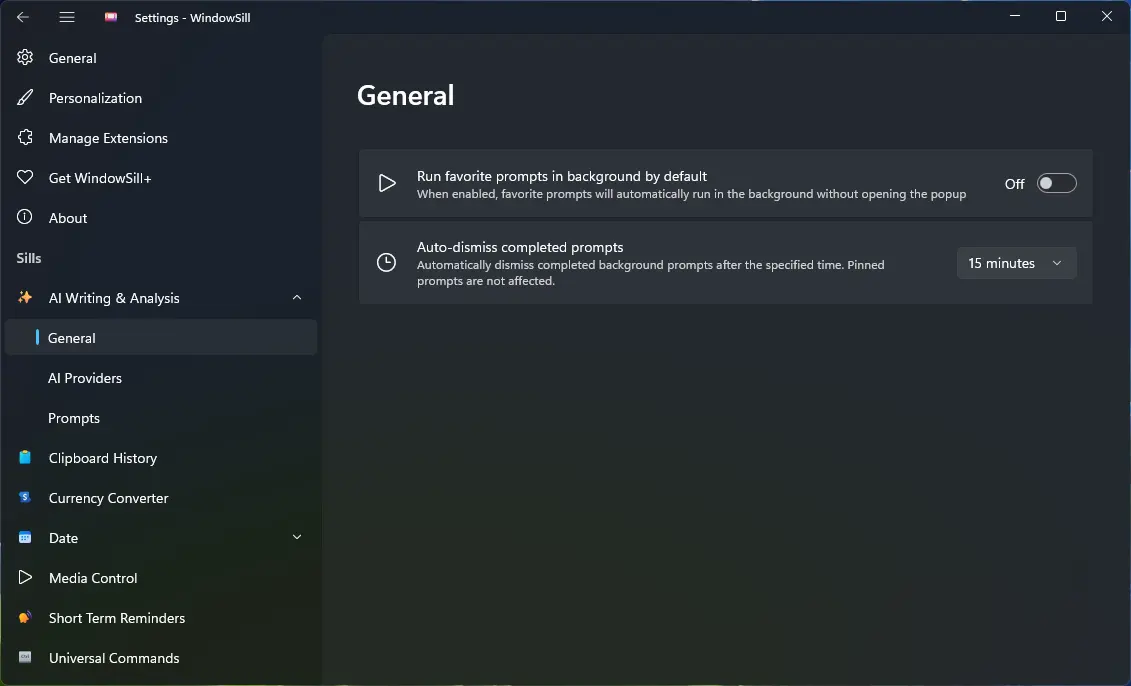
Now, completed results are automatically dismissed after a configurable delay. You set the timer in settings, and finished prompts quietly disappear once they've had their time. The default works for most people, but you can make it shorter or longer depending on how quickly you tend to check results.
When you do need to keep a result around, pin it. Pinned results stay in AI Activity until you remove them yourself, regardless of the auto-dismiss timer. Useful when a prompt returned something you want to reference later or compare with another result.
The Replace and Append buttons now also inject the text back into the app where the prompt was originally triggered.
Run favorite prompts in the background
This one pairs with AI Activity. There's a new option to run your favorite prompts in the background by default. With it enabled, clicking a favorite prompt fires the prompt straight into AI Activity without opening the popup at all.
The workflow becomes: click, keep working, check the result when AI Activity shows it's done. For prompts you run repeatedly throughout the day (grammar checks, tone adjustments, translations), this removes a step every single time.
Smaller improvements and fixes
- Various UX refinements across AI Providers settings, Prompts settings, and the Analyze / Rewrite sill.
- Fixed a crash that could happen when changing the focused app.
- Fixed a crash that could happen when the taskbar is relocated.
- Fixed a crash that could happen on startup.
That's 0.9.23. The AI side of WindowSill should feel noticeably more organized and less interruptive now. If you run into anything, let us know on Discord or GitHub.