Last week I was reading a deployment guide, and every other paragraph had a command I needed to run. Copy the command. Alt-tab to Windows Terminal. Paste it. Run it. Alt-tab back to the guide. Find where I left off. Repeat fourteen times.
By the fifth command, I'd already pasted one into the wrong directory. By the tenth, I was running commands from memory because switching back and forth felt like too much effort. That's when mistakes happen.
I built the Inline Terminal extension for WindowSill because this workflow is broken. Not in an obvious way, but in the slow, cumulative way that wastes 20 minutes before you notice it.
What Inline Terminal does
Inline Terminal adds a terminal to your WindowSill bar. But it's not a generic embedded console. It's a command runner that activates based on what you're doing: selecting text that looks like a command, dropping a script file onto the bar, or managing commands you've already run.
Three things make it different from opening a separate terminal window:
- Select text, run it as a command. Highlight
dotnet buildin a browser, a markdown file, or a code editor, and Inline Terminal appears on the bar. Click to configure and run. - Script files. Select a
.bat,.ps1,.sh, or.cmdfile in File Explorer, or drag and drop it onto the bar. Inline Terminal picks the right shell and sets up the command. - Pin ongoing commands. Commands you've run stay visible on the bar. You can re-run them, check output, copy results, or dismiss them when you're done.
No terminal window to manage. No alt-tab. No losing your place.
How text selection activation works
This is the feature I use most. Here's the actual flow:
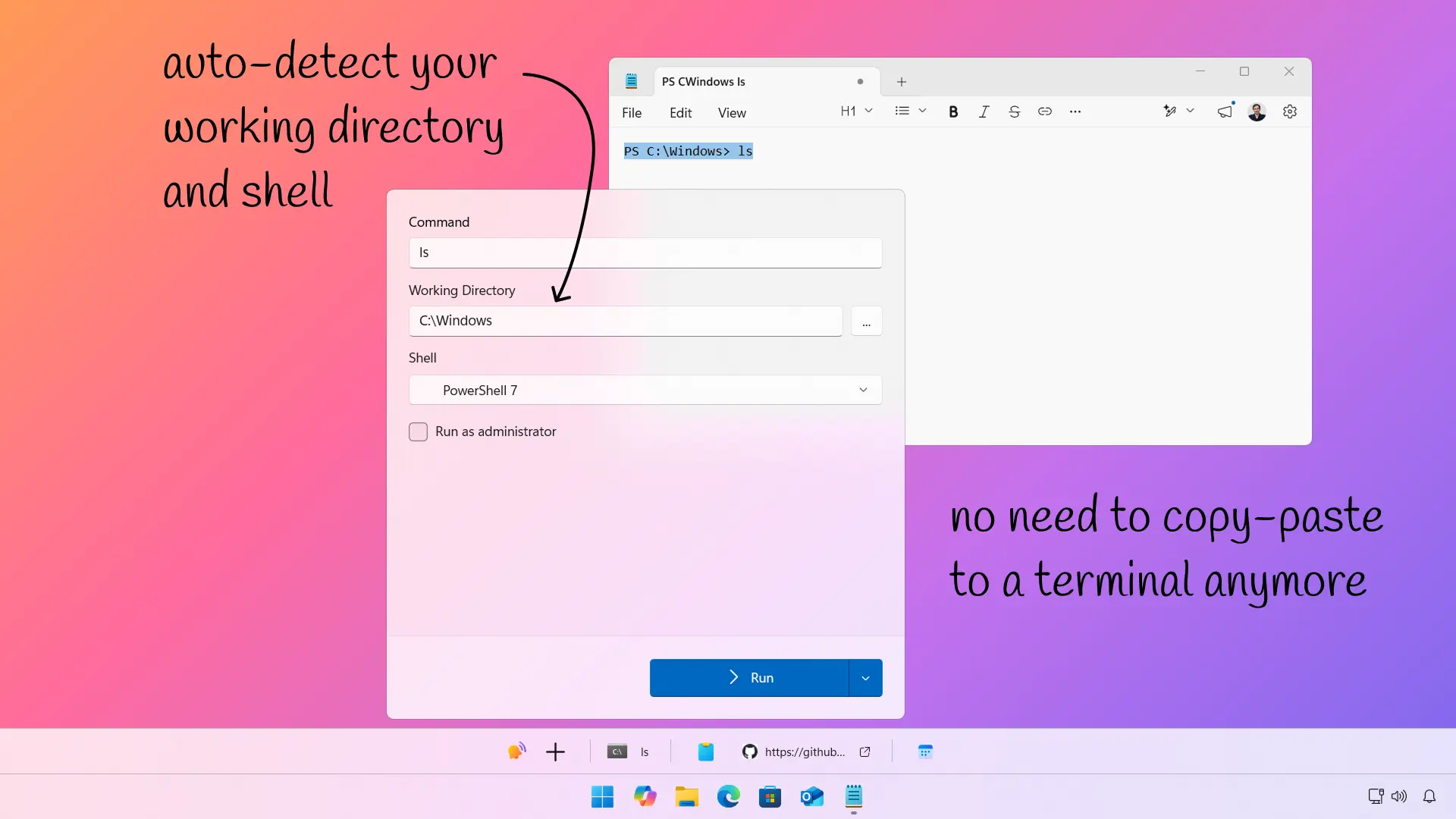
You're reading documentation, a README, a tutorial, anything with terminal commands in it. You select a command like npm install or a full PowerShell prompt like PS C:\project> dotnet test. Inline Terminal parses the selection, figures out what the command is, and shows it on the bar.
The parser is smarter than a simple clipboard copy. It handles:
- PowerShell prompts.
PS C:\Users\me> git statusextractsgit statusas the command andC:\Users\meas the working directory. - Bare path prompts.
C:\project> dotnet buildworks the same way. - Bash prompts.
user@host:~/project$ makeis recognized too, useful if you're reading Linux docs and running through WSL. - Markdown code blocks. If the selected text includes
```powershellfencing, Inline Terminal strips the fence lines and uses the shell hint to pick the right shell. - Multiple commands. Select a block with several prompts, and each one becomes a separate command on the bar.
The activator only fires when the selected text actually contains a recognized executable on your system PATH. Random English sentences won't trigger it. You won't see Inline Terminal pop up when you're selecting a paragraph of text.
Script files
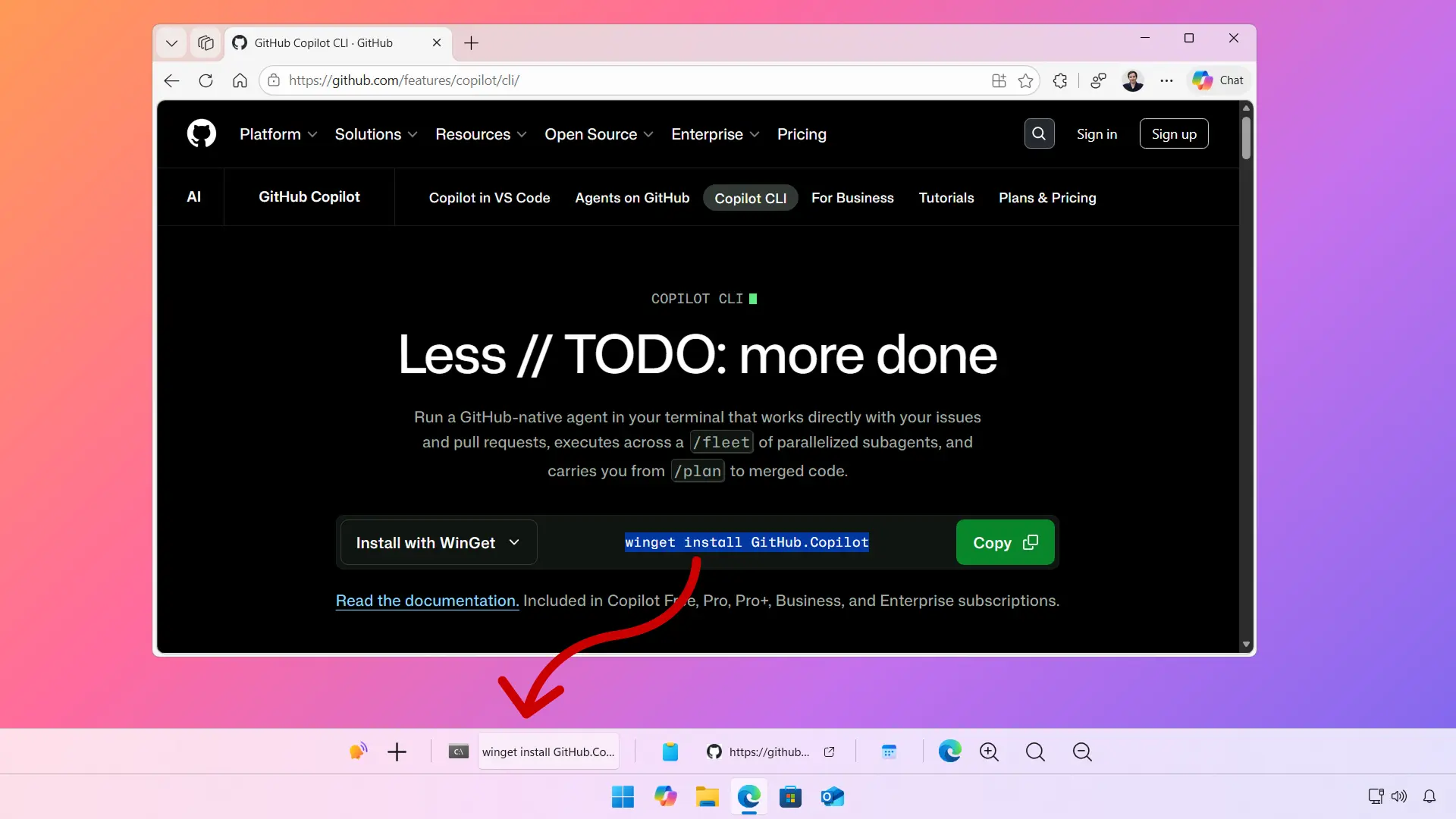
If you have a build script, a deployment script, or any automation file, you can select it in File Explorer and WindowSill will detect it. Inline Terminal recognizes .bat, .cmd, .ps1, .com, .sh, .bash, and .zsh files.
When you select a script file in File Explorer, Inline Terminal:
- Detects the file type and selects the appropriate shell (CMD for
.bat/.cmd, PowerShell for.ps1, WSL for.sh/.bash/.zsh) - Sets the working directory to the script's parent folder
- Creates a command entry on the bar, ready to configure and run
This is handy for scripts you run regularly but don't want to memorize the path for. Select it, and it's on the bar.
The command popup: configure before you run
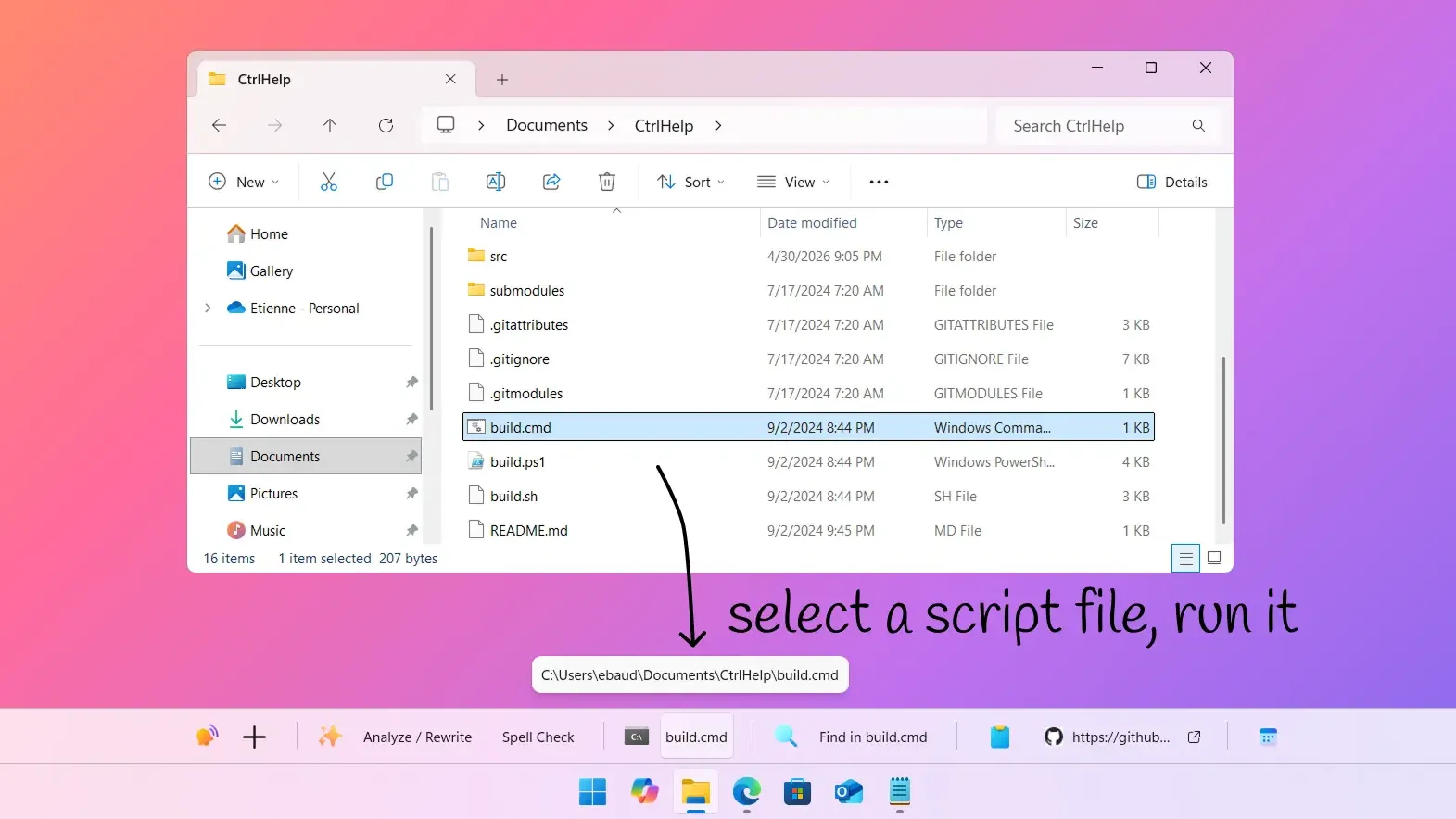
Clicking a command on the bar opens a popup where you can review and adjust settings before execution:
- Edit the command text. Fix a typo or tweak arguments without going back to the source.
- Change the working directory. Browse to a different folder if the default isn't right.
- Switch shells. Inline Terminal detects all available shells on your system (PowerShell 5, PowerShell 7, CMD, WSL distros) and lets you pick which one to use.
- Run as administrator. A checkbox for elevated execution when you need it.
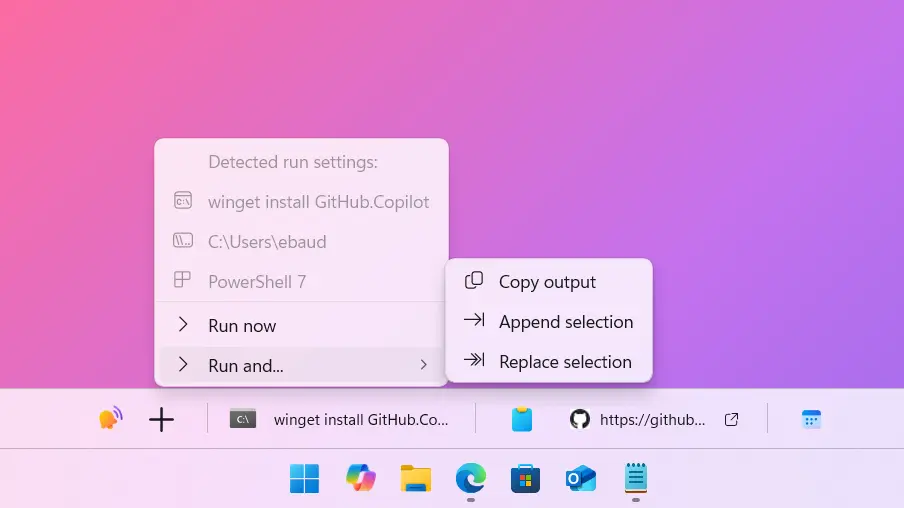
The run button has a split menu with four modes:
- Run (default): execute and show output
- Run & Copy: execute, then copy the output to your clipboard
- Run & Append: execute, then insert the output after your selected text in the source app
- Run & Replace: execute, then replace your selected text with the output
That last one is powerful for quick transformations. Select a JSON blob, run it through jq, and replace the original with the formatted result. All without leaving the app you're working in.
Finally, you can also do a right-click on the sill to have a quick access to the run commands.
Pinned commands and ongoing runs
Once you run a command, it stays on the bar as a "pinned" item. This means:
- You can re-run it with different settings
- You can check the output anytime without re-running
- You can copy the output to clipboard
- Multiple runs of the same command are tracked separately
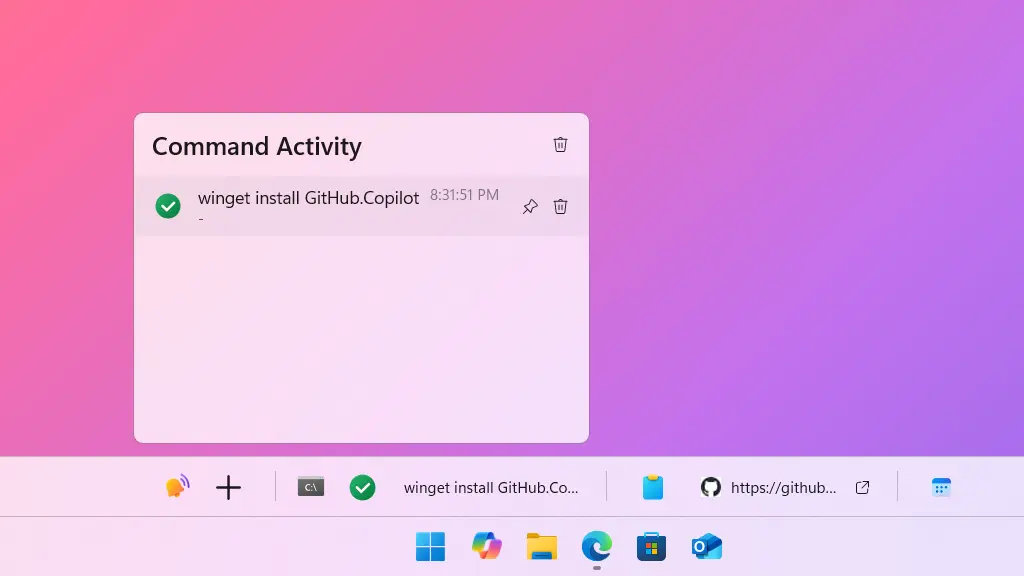
There's also an "Command Activity" view that shows all active runs across all commands. If you kicked off a long npm install and a docker build at the same time, you can monitor both from the bar.
Commands auto-dismiss after a configurable interval (default is 5 minutes after completion). If you want a result to stick around longer, pin it to prevent auto-dismiss.
The ClickFix security warning
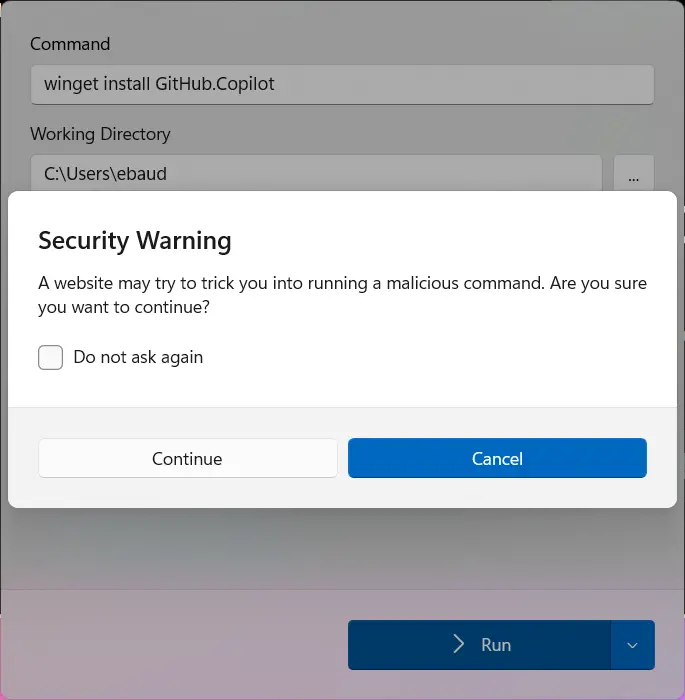
One thing I want to call out: Inline Terminal includes a security feature for commands that originate from web browsers. If you select text in Edge, Chrome, Firefox, Brave, Opera, Vivaldi, or Zen, you'll see a warning before execution.
This exists because of ClickFix attacks, where malicious websites instruct users to copy and run commands. Inline Terminal flags browser-sourced commands so you can review them before blindly executing. You can disable the warning in settings if you find it unnecessary, but I'd recommend leaving it on.
When to use Inline Terminal vs. a full terminal
Inline Terminal isn't trying to replace Windows Terminal or your IDE's integrated terminal. It's for a different category of work:
| Use Inline Terminal when... | Use a full terminal when... |
|---|---|
| Running one-off commands from documentation | Interactive sessions (SSH, REPLs, debuggers) |
| Executing build/test commands while reading code | Long-running processes you need to monitor continuously |
| Running script files without navigating to their directory | Complex multi-step workflows with piping and redirection |
| Quick command output you want to copy or inject into another app | Tasks requiring multiple simultaneous terminal tabs |
Inline Terminal handles the "run this quick thing" cases that don't justify switching to a full terminal. The commands that take 5 seconds but cost you 30 seconds of context switching.
Getting started
Inline Terminal is available in the WindowSill Marketplace.
To try the text selection feature: open any webpage or document with a terminal command, select the command text, and look for the Terminal item on your WindowSill bar. Click it, review the settings, and hit Run.
To try drag and drop: find a .bat or .ps1 file in Explorer and drag it onto the bar.
The extension settings let you configure word wrap for output, the auto-dismiss timer, and the ClickFix browser warning.
Frequently Asked Questions
What shells does Inline Terminal support?
Inline Terminal auto-detects PowerShell 5.1, PowerShell 7+, CMD, and all installed WSL distributions. You can switch between any detected shell before running a command.
Can I edit a command before running it?
Yes. The command popup lets you modify the command text, change the working directory, select a different shell, and toggle administrator mode before execution.
What happens to command output after I close WindowSill?
Command runs are in-memory only. They persist on the bar while WindowSill is running, but closing WindowSill clears them. If you need to keep output, use the "Run & Copy" option or copy from the output panel.
Is it safe to run commands selected from web pages?
Inline Terminal shows a security warning for commands originating from web browsers to protect against ClickFix-style attacks. Always review the command text before running, especially from untrusted sources.
Can I run multiple commands at the same time?
Yes. Each command runs independently, and the Ongoing Commands view lets you monitor all active runs. You can kick off several commands and check their progress from the bar.