Last week I was 12 minutes into a focused coding session when a thought hit me: wait, did my 2 PM start yet? I glanced at the clock. 2:09 PM. I fumbled for the browser, found the Teams Calendar tab buried behind 14 others windows on my desktop, and confirmed what I already knew. The meeting had started without me, and I'd been staring at the wrong screen the whole time.
This is a problem I kept running into, and it's the reason I built the Date extension for WindowSill.
The tab tax on your calendar
Most people check their calendar in a browser. That means their schedule lives behind at least one Alt-Tab, one click, and whatever loading spinner their calendar app decides to show that day. If you're the kind of person who uses multiple calendar providers (Outlook for work, Google for personal, maybe iCloud for family), you're now toggling between multiple tabs or apps just to get a picture of your day.
A 2023 study from the University of California, Irvine found that it takes an average of 23 minutes to fully refocus after a context switch. Checking your calendar doesn't take 23 minutes, but the disruption it causes does. You break flow, process new information ("oh, I have a meeting in 20 minutes"), make a mental note, then try to pick up where you left off. That mental note sits in working memory, quietly draining attention until the meeting actually starts.
What if your calendar just... stayed visible? Not in a separate window. Not in a browser tab. Right there on your desktop, glanceable at all times.
What the Date extension actually does
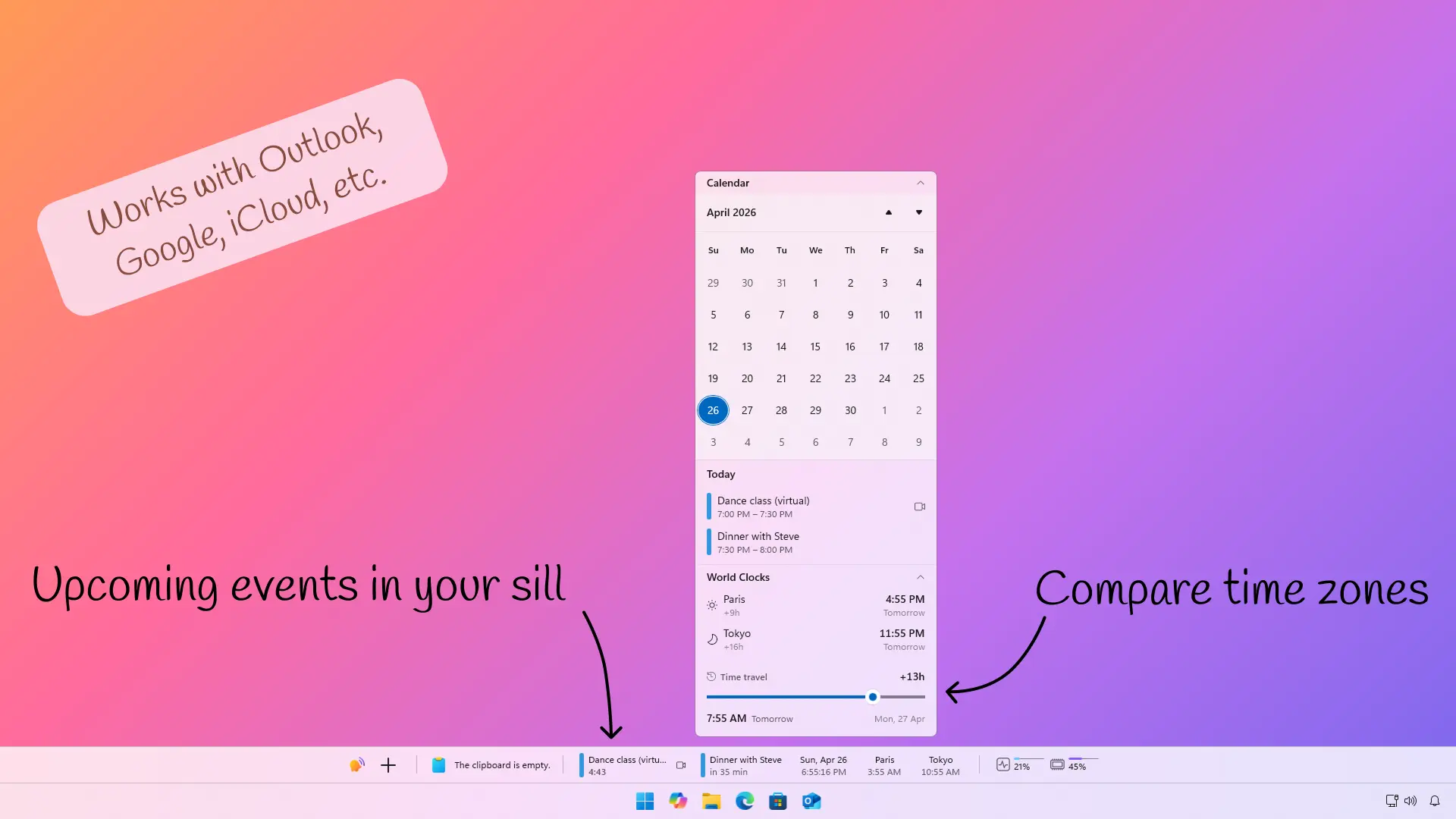
The Date extension for sits in the sill bar (the persistent toolbar that runs along the edge of your screen) and does three things well: shows the date and time, surfaces your upcoming meetings, and displays world clocks for the timezones you care about.
None of that sounds revolutionary on paper. The difference is in how it all works together.
Live date and time, your way
The sill bar shows a live clock that you can customize to match how you think about time. Pick from 12-hour or 24-hour format. Choose a date style: "Sat, Apr 28", "28 Apr", "2026-04-28", or a handful of other regional formats. Or skip the date entirely and show just the time. You can also switch between showing a calendar icon or the full date/time text.
It's a small thing, but having the date always visible without hovering over the system tray clock is surprisingly useful when you're filling out forms, writing emails, or just trying to remember what day it is.
Unified calendar from all your providers
Here's where it gets interesting. The Date extension connects to four calendar providers:
- Microsoft Outlook
- Google Calendar
- Apple iCloud
- Any CalDAV server (Fastmail, Nextcloud, Synology, you name it)
You sign into each account once, and from that point on, your upcoming meetings from all of them show up together in the sill bar. No browser. No switching apps. A unified view of your schedule, pulled from whatever combination of providers your life requires.
The calendar popup gives you a fuller view when you click the date. But the real value is the at-a-glance meeting items that live right in the bar itself.
Meetings that won't let you forget
Each upcoming meeting appears as its own item in the sill bar with a live countdown. The lifecycle works like this:
- Normal: the meeting is more than 5 minutes away. It shows the title and countdown, keeping you passively aware.
- Starting soon: under 5 minutes. The item switches to a minute-and-second countdown.
- Flashing: 30 seconds out. The sill item starts flashing. This is the "put down whatever you're doing" signal.
- Live: the meeting has started. It shows how long the meeting has been running. Useful for knowing whether you're fashionably late or disrespectfully late.
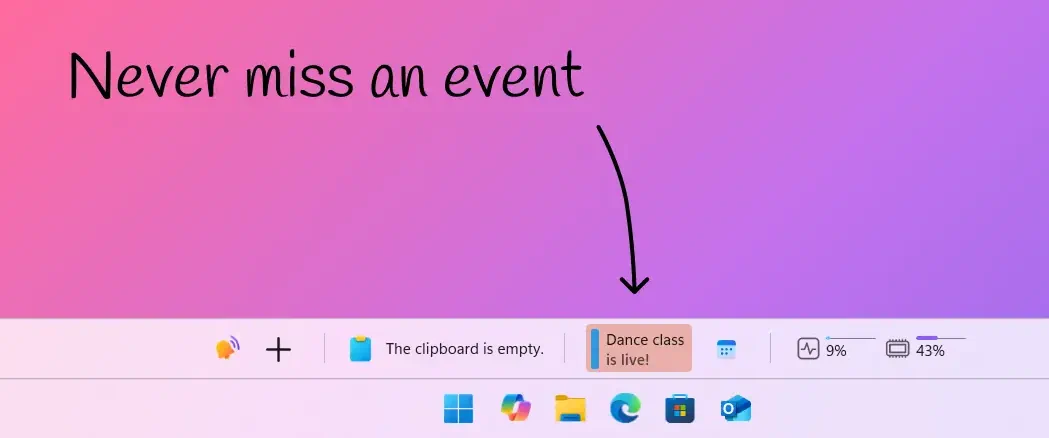
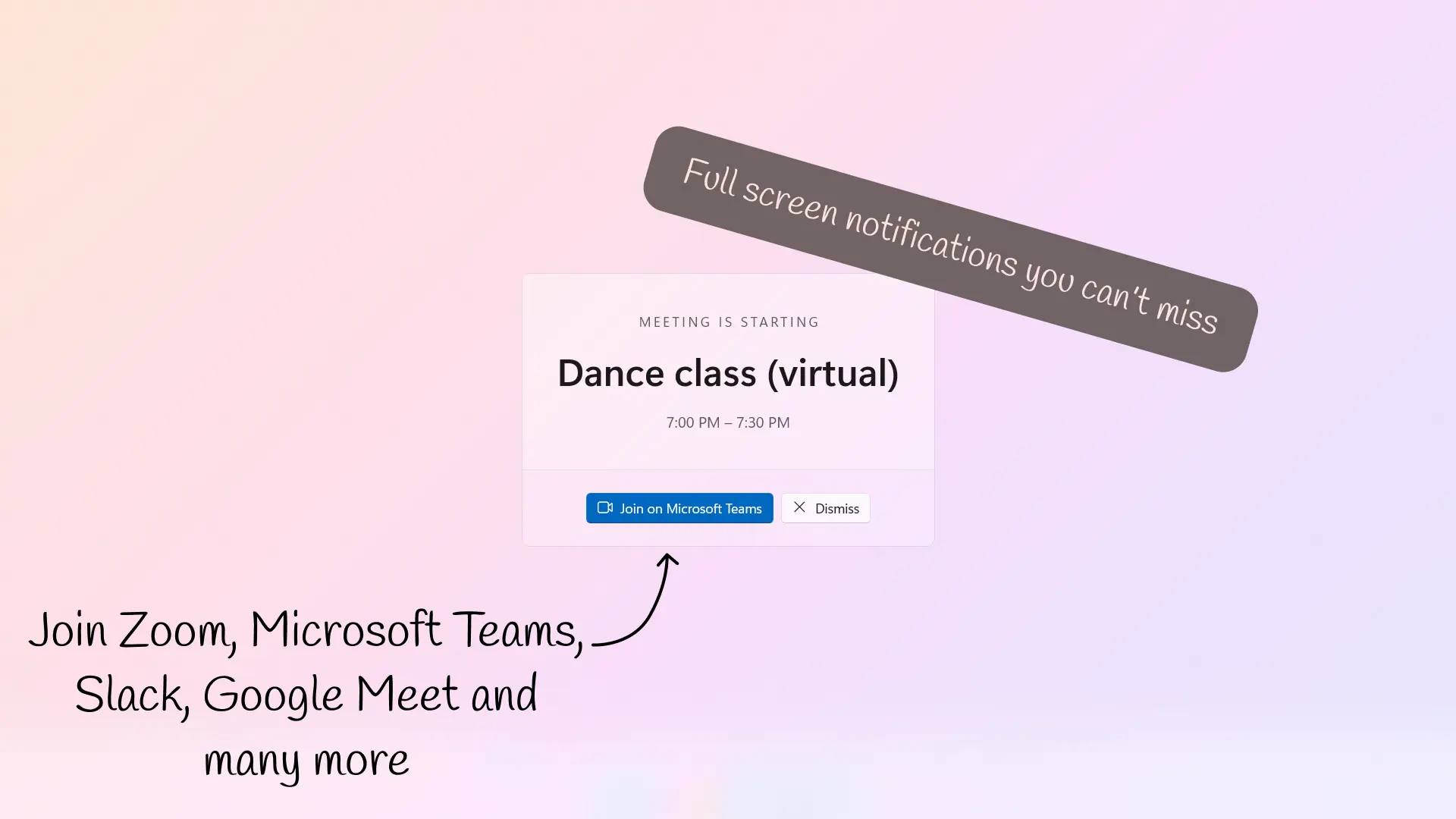
For notifications, you get three options: a full-screen overlay that covers all your monitors, a standard Windows toast notification, or nothing at all.
The extension also detects video call links automatically. It recognizes Zoom, Google Meet, Microsoft Teams, Webex, Slack, FaceTime, and over 50 other conferencing services by scanning your event descriptions and locations. One click joins the call.
Travel time for physical meetings
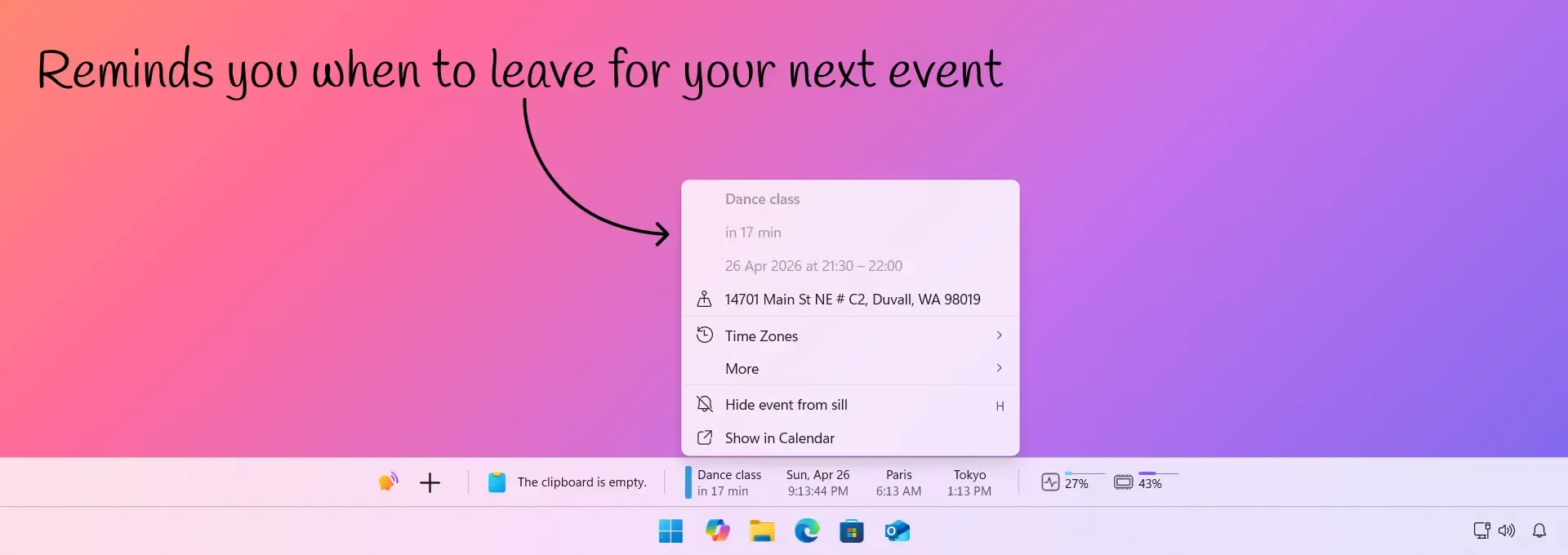
Not every meeting is a video call. When a calendar event has a physical location, the Date extension estimates how long it'll take you to get there. It uses your current GPS location, geocodes the event's address, and calculates a route using your preferred travel mode: driving, walking, or cycling.
The meeting lifecycle adjusts accordingly. "Leave now!" with a flashing notification appears in the sill. This triggers when it's time to start your commute. A full-screen or toast notification may also appear, so it's impossible for you to miss it.
World clocks pinned to your bar
If you work with people in other timezones, you know the arithmetic. "It's 3 PM here, so that's... 11 PM in Tokyo? No wait, daylight saving just changed, so..."
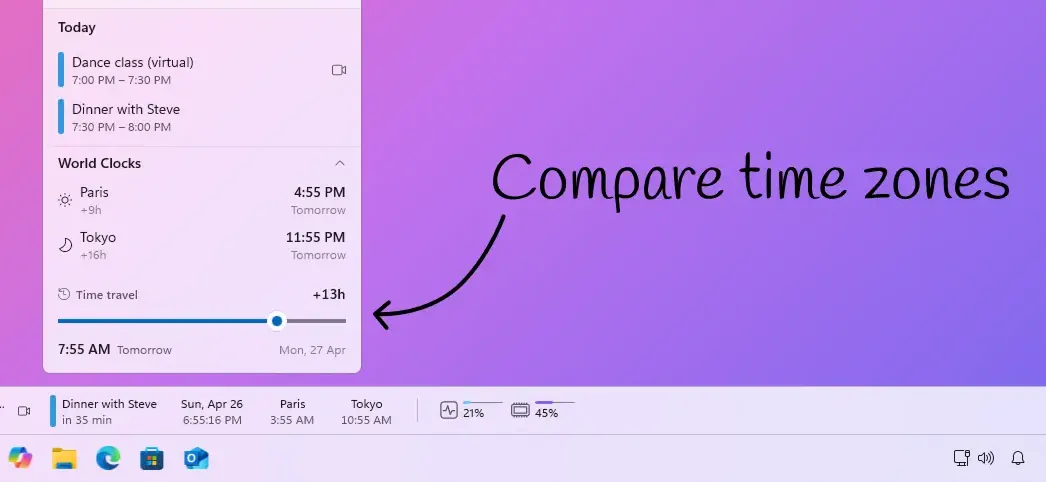
The Date extension handles this with pinned world clocks. Search for any city, pin it, and a live clock for that timezone appears right in the sill bar. You can place clocks before the date, after it, or let the extension sort them by timezone offset, with earlier zones on the left and later zones on the right.
Setting it up
The first-time setup walks you through three steps:
- Welcome: a quick overview of what the extension does.
- Accounts: connect your calendar providers. Sign in with OAuth for Outlook and Google, or enter credentials for iCloud and CalDAV.
- Travel time: optionally enable location-based departure alerts and set your preferred travel mode.
After that, everything runs in the background. Calendars sync automatically, countdowns tick, and world clocks update.
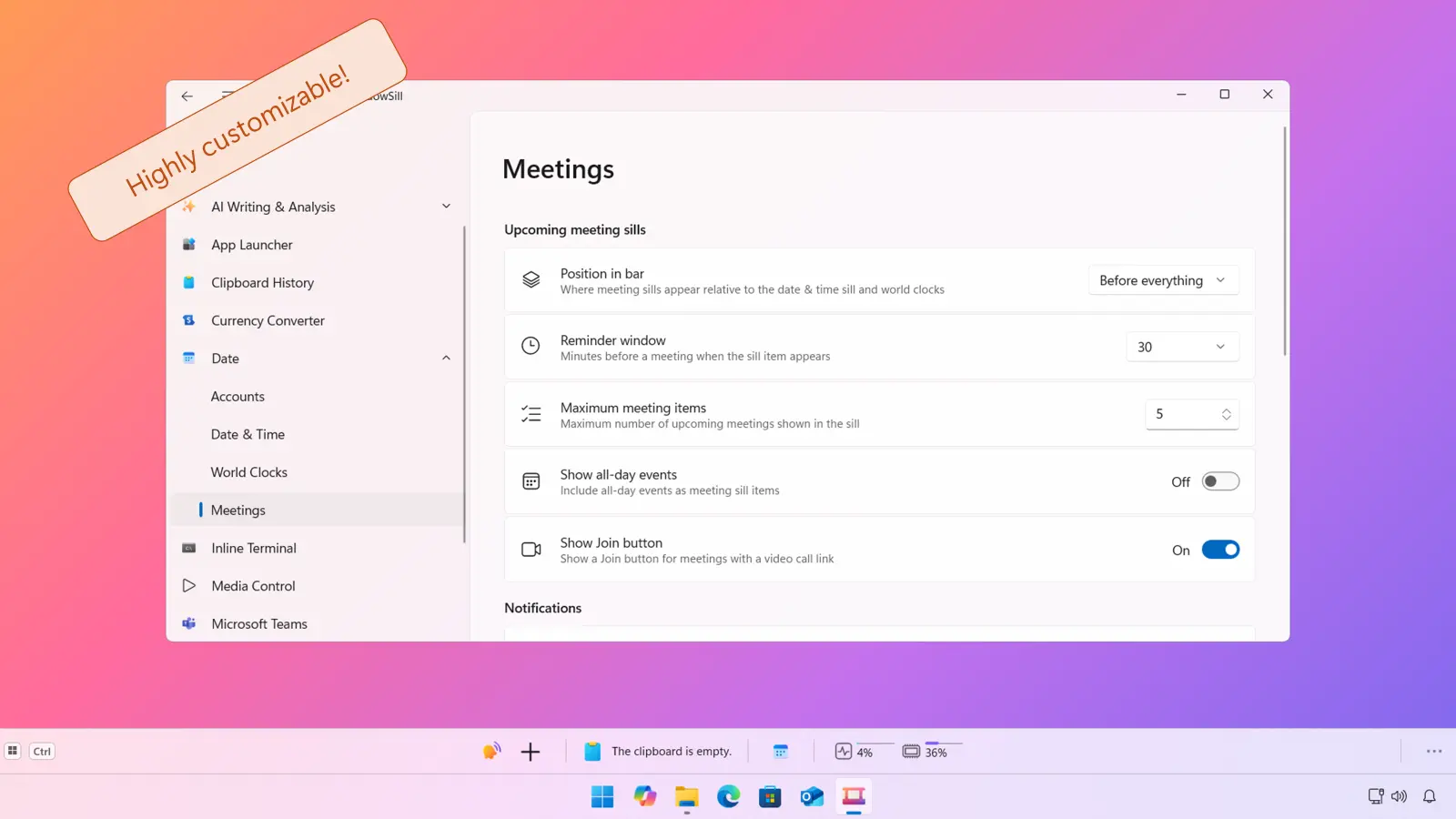
You can arrange where meetings and world clocks appear relative to the date. Meetings can sit before everything else (so they're the first thing you see) or after everything. World clocks can go before the date, after it, or get sorted by timezone. This flexibility matters when your sill bar has other extensions loaded and you want your calendar items positioned where they make sense for your workflow.
Who this is for
The Date extension is most useful if you:
- Use multiple calendar services and want a single, unified view without opening multiple apps or browser tabs
- Get lost in focus work and need meetings to surface themselves rather than relying on you to remember them
- Collaborate across timezones and want live clocks for your team's locations visible at all times
- Attend in-person meetings and need departure alerts based on real travel time, not guesswork
If you already have a system that works for you, keep it. But if you've ever missed a meeting because your calendar was buried in a browser tab, this is the fix.
Try it
Download WindowSill Date extension and your calendars will be on your desktop in under a minute.
Frequently Asked Questions
Does the Date extension sync automatically?
Yes. Once you connect your calendar accounts, the extension syncs in the background.
Can I connect multiple accounts from the same provider?
Yes. You can connect multiple Outlook accounts, multiple Google accounts, and multiple CalDAV/iCloud accounts. All events from all accounts appear in a single unified view.
What video call services does it detect?
The extension recognizes Zoom, Google Meet, Microsoft Teams, Webex, FaceTime, Slack, GoToMeeting, BlueJeans, Jitsi, and over 50 other conferencing platforms. It scans event descriptions and location fields for call URLs and gives you a one-click join button.
How does travel time estimation work?
The extension uses your device's GPS to find your current location, geocodes the event's address, and calculates a route. You choose your travel mode (driving, walking, or cycling) and your preferred maps provider.
Is this different from the WindowSill Short-Term Reminder extension?
The Date extension handles calendars, meetings, world clocks, and date/time display. The Short-Term Reminder extension is a separate tool for quick, ad-hoc reminders. They complement each other but serve different purposes.